
Adjust CTA buttons or messages on the website and in-app based on the user's lifecycle stage, encouraging them to take the next step in their journey.
About the Growth Play
Most expansion strategies rely on sales triggers or usage thresholds, but the real signals are already in front of you, buried in everyday product usage behavior.
This Growbook shows you how to use Intempt to track those behaviors, segment users by lifecycle stage, and tailor CTAs or UI messages that move each user to the next logical step: from free to paid, basic to premium, or inactive to reactivated.
We'll use Otto, a demo SaaS platform for project management, to illustrate the approach.
TL;DR
Track real product behaviors like views, logins, and feature usage to identify upgrade intent.
Create real-time segments such as "Upgrade Curious" or "Low Usage Paid Users."
Adapt website and in-app CTAs and Banners to each user's lifecycle stage using Experiences.
Trigger expansion journeys with personalized messages, offers, or walkthroughs.
Measure conversion and lift using Experience and Journey Analytics to optimize over time.
Result: A dynamic upgrade system that adjusts to user behavior and increases expansion revenue.
Benefits
Expand revenue without adding friction: Encourage upgrades and usage nudges right inside the product.
Show the right CTA to the right user: No more one-size-fits-all upsell banners.
Use real behavior as a trigger: Target based on what users do, not who you think they are.
Boost retention through deeper usage: Expansion and engagement go hand in hand.
How It Works
Step 1: Track product user engagement
Install Intempt's JavaScript SDK:
Begin tracking user and account activity across your app or site.
Check or define key Events:
confirm the following are tracked- 'login', 'created ml task', 'invited team member', 'exported report', 'subscribed to premium plan', 'viewed upgrade plan', 'subscribed newsletter, book demo', 'product viewed'.
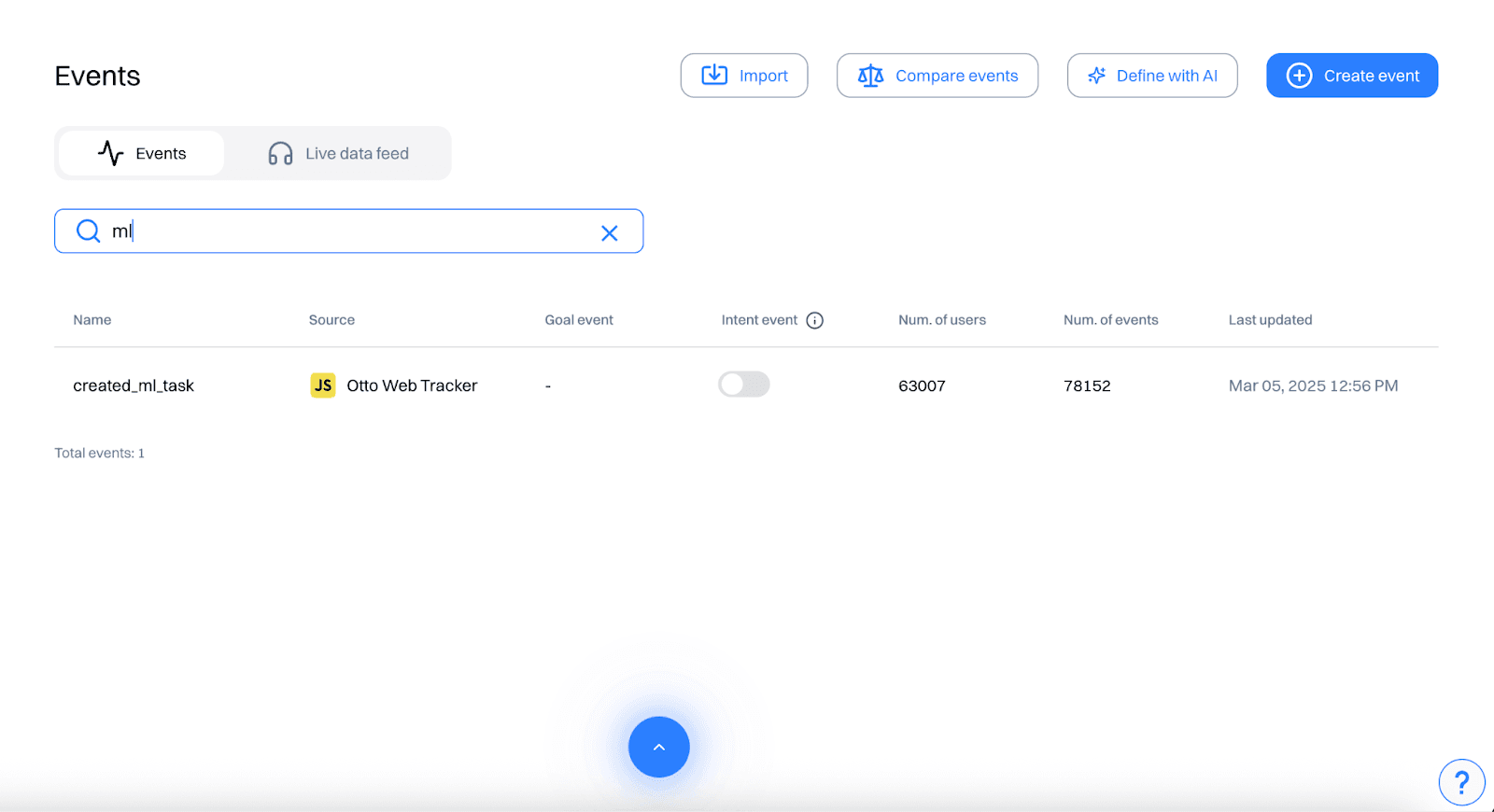
Create additional events:
If any events are not readily available, go to create event and set conditions to create the needed event.
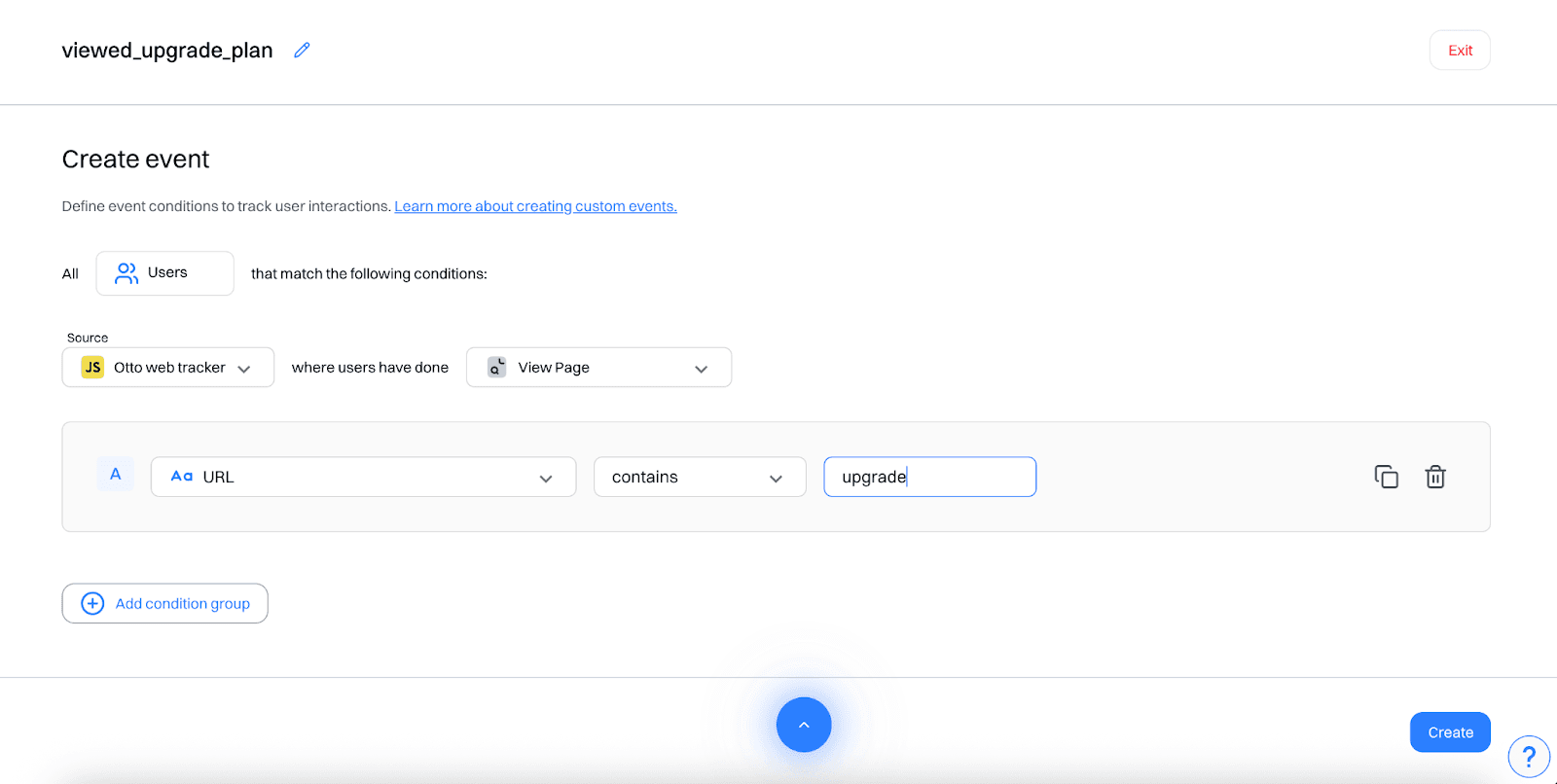
These events help capture activation, collaboration, reporting, and upgrade intent - all key indicators of expansion potential.
Step 2: Segment users by behavior
Go to segments and create real-time segments like:
"Basic plan power users": Users who have subscribed to basic plan, viewed product, logged in at least 10 times in the last 1 month and created ml task at 5 times in the last 1 month
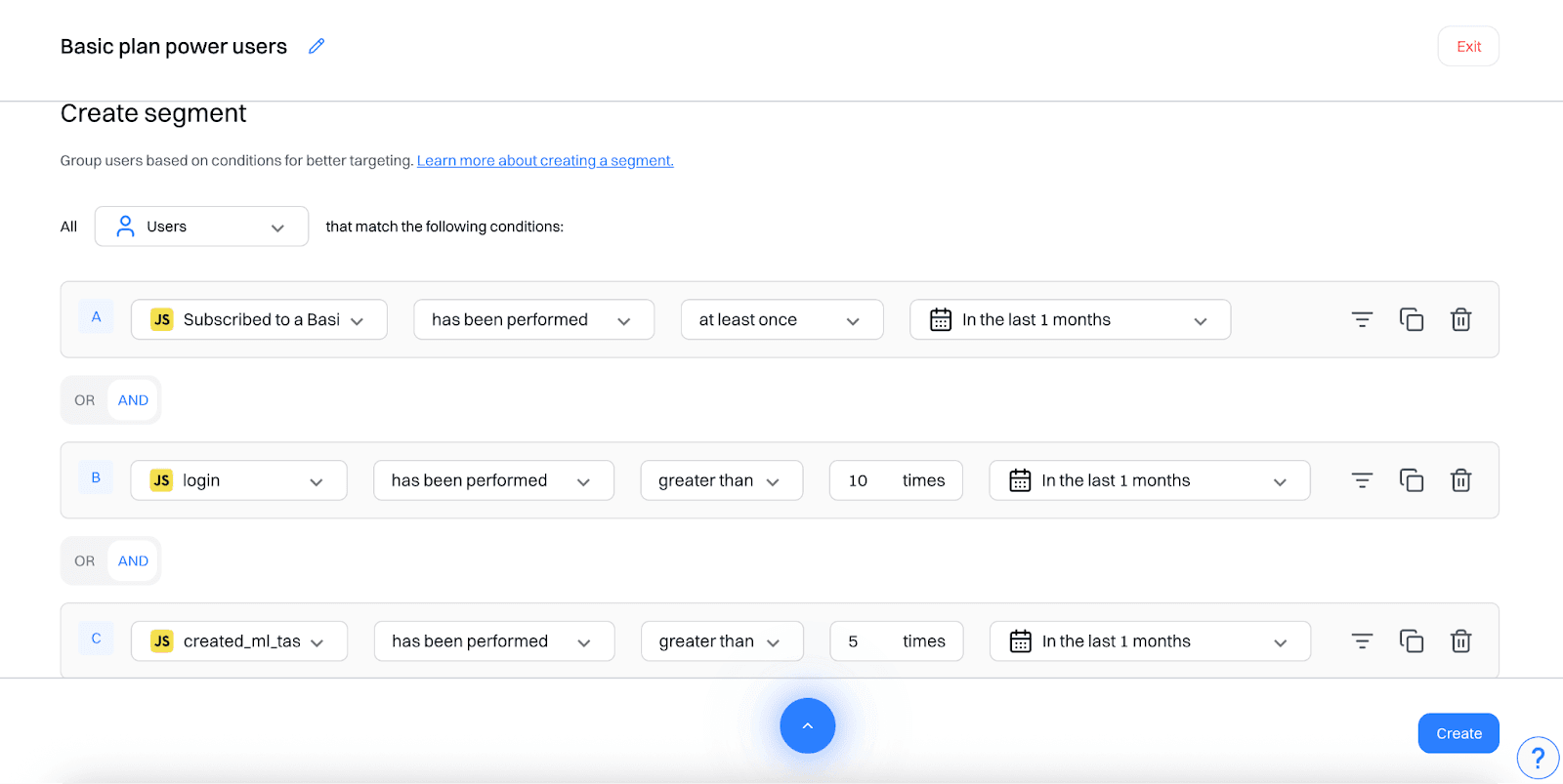
"Upgrade curious": Users who have viewed upgrade plan at least once in the last 5 days, subscribed newsletter and has not subscribed to premium plan.
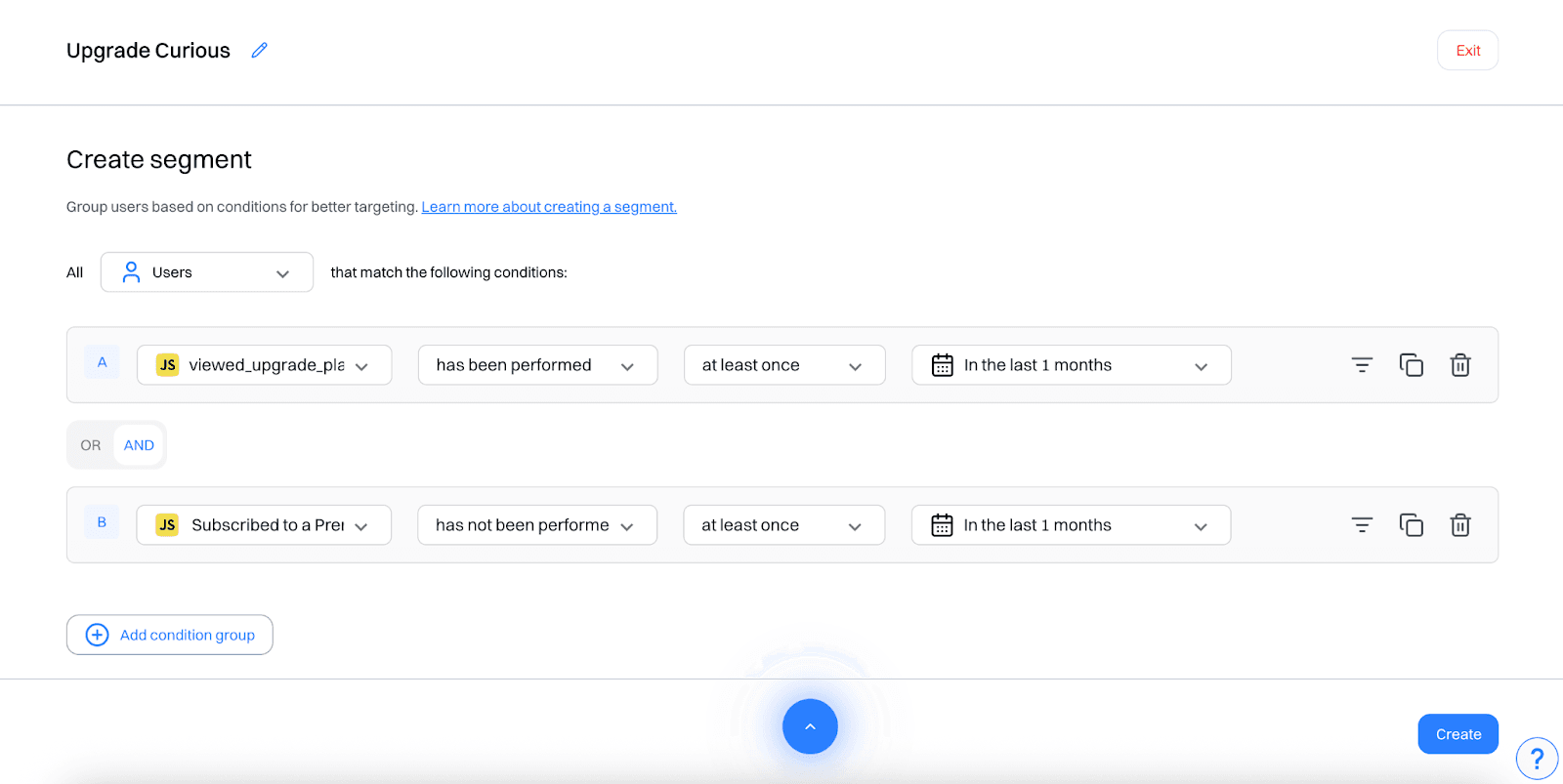
"Low usage paid users": Users who have subscribed to premium plan, have not logged in in the last 10 days and have not created object in the last 10 days
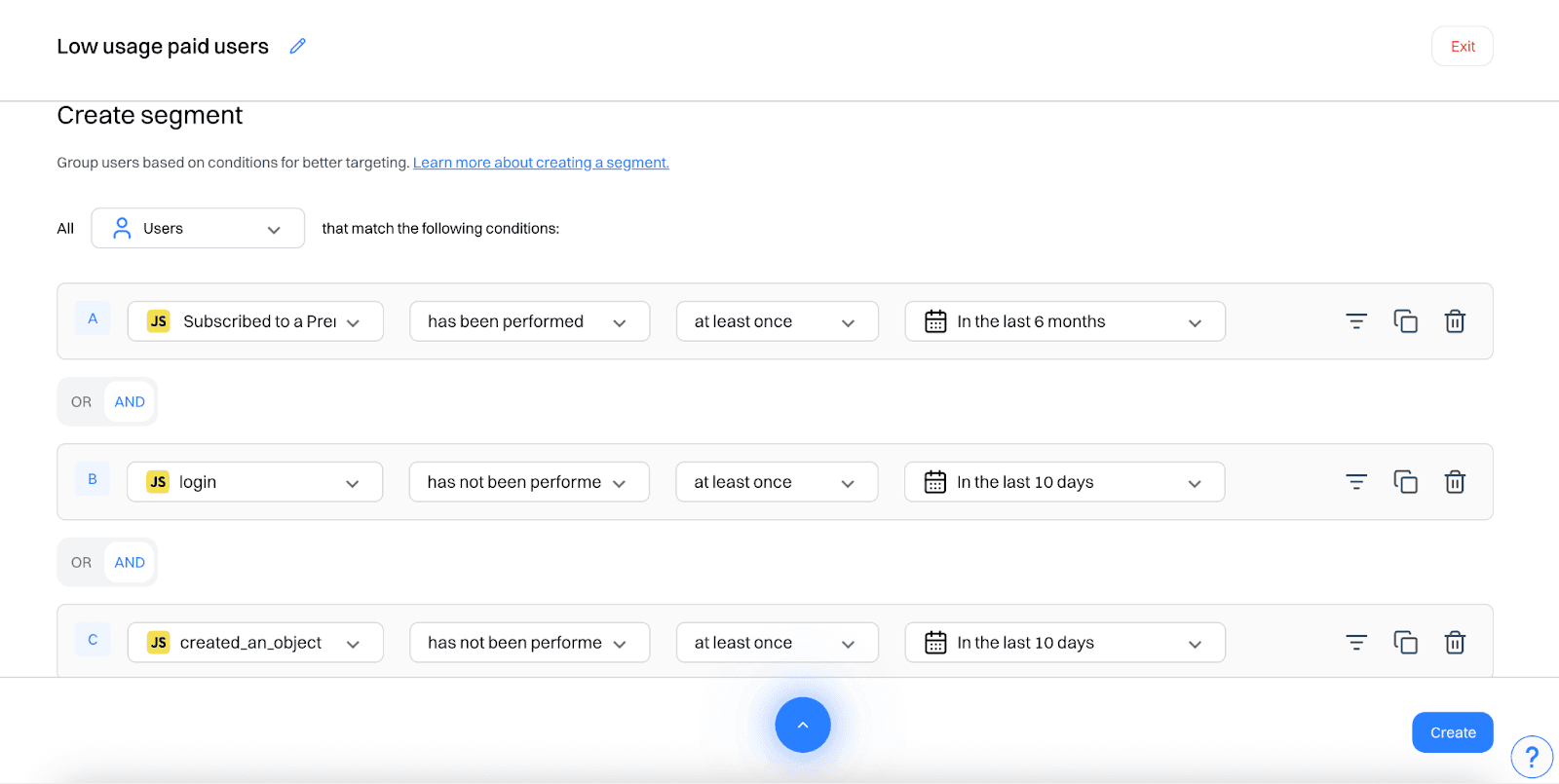
These segments update dynamically based on real-time user behavior.
Step 3: Personalize CTAs across web and in-app
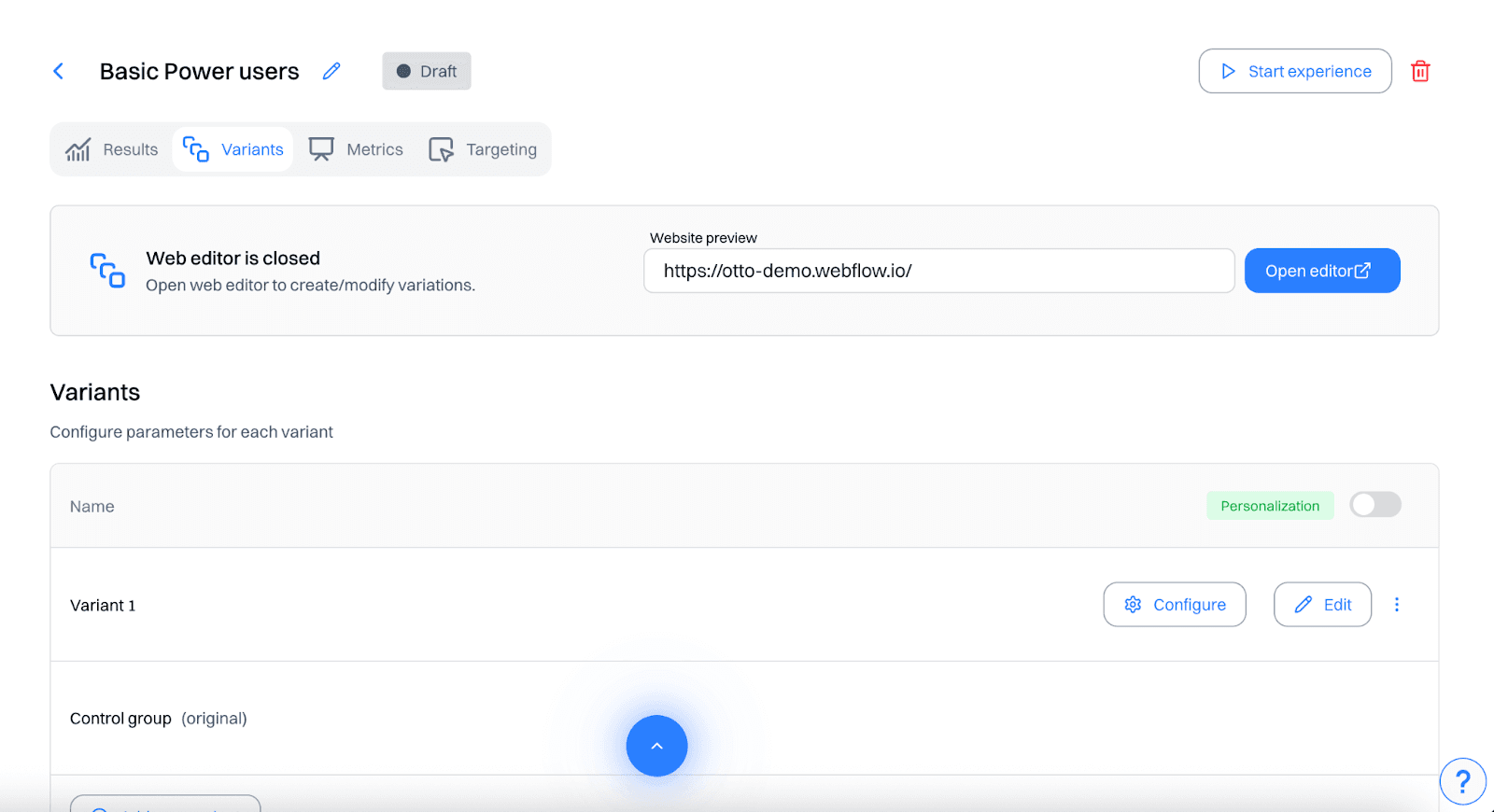
In the Experiences module, create different experiences for each segment and target both your website and in-app product interface.
(Click the toggle to select Personalization)
Example 1: Basic Plan Power Users
Target Segment: "Basic plan power users"
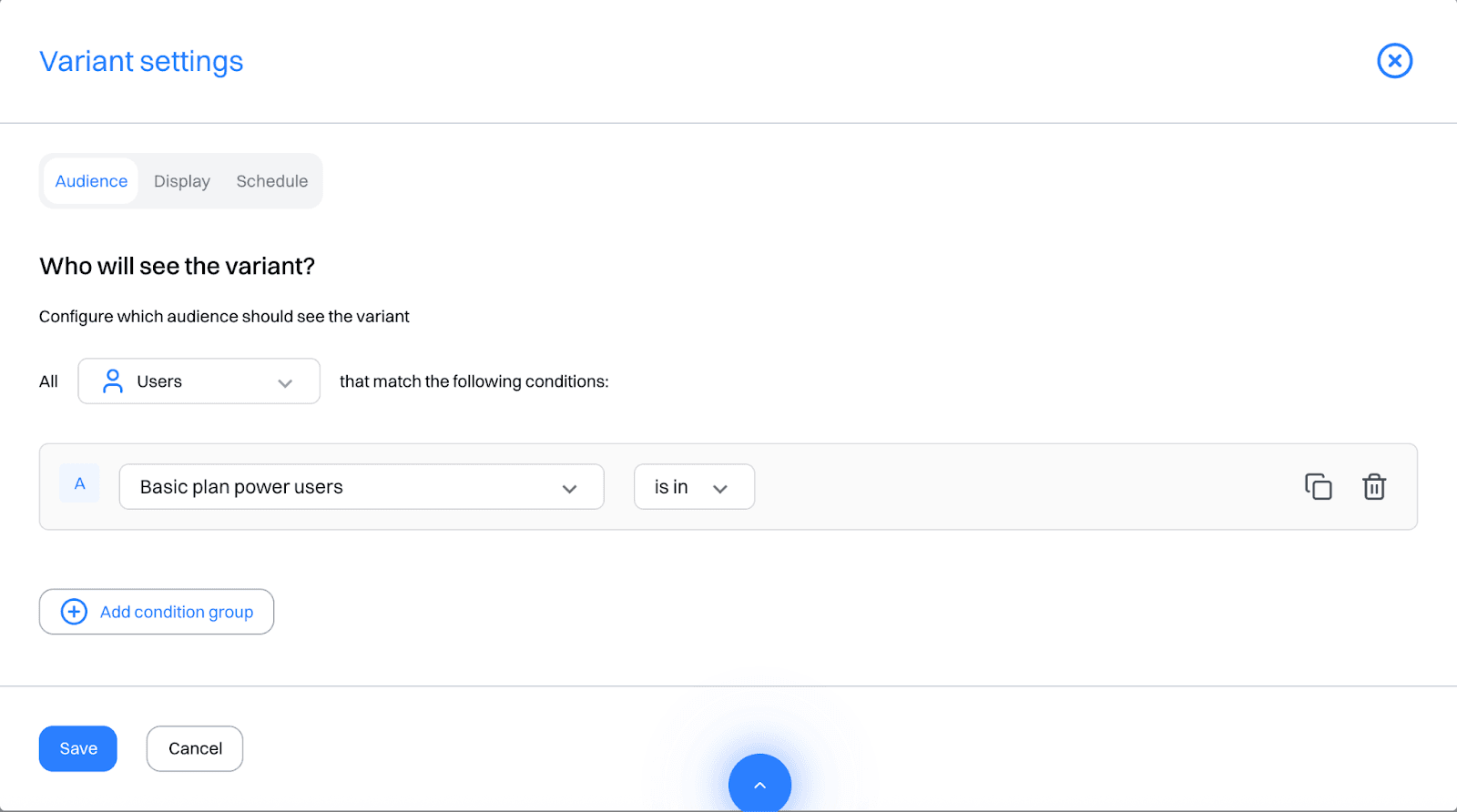
CTA (Web): "Upgrade to unlock team workflows and advanced reports".
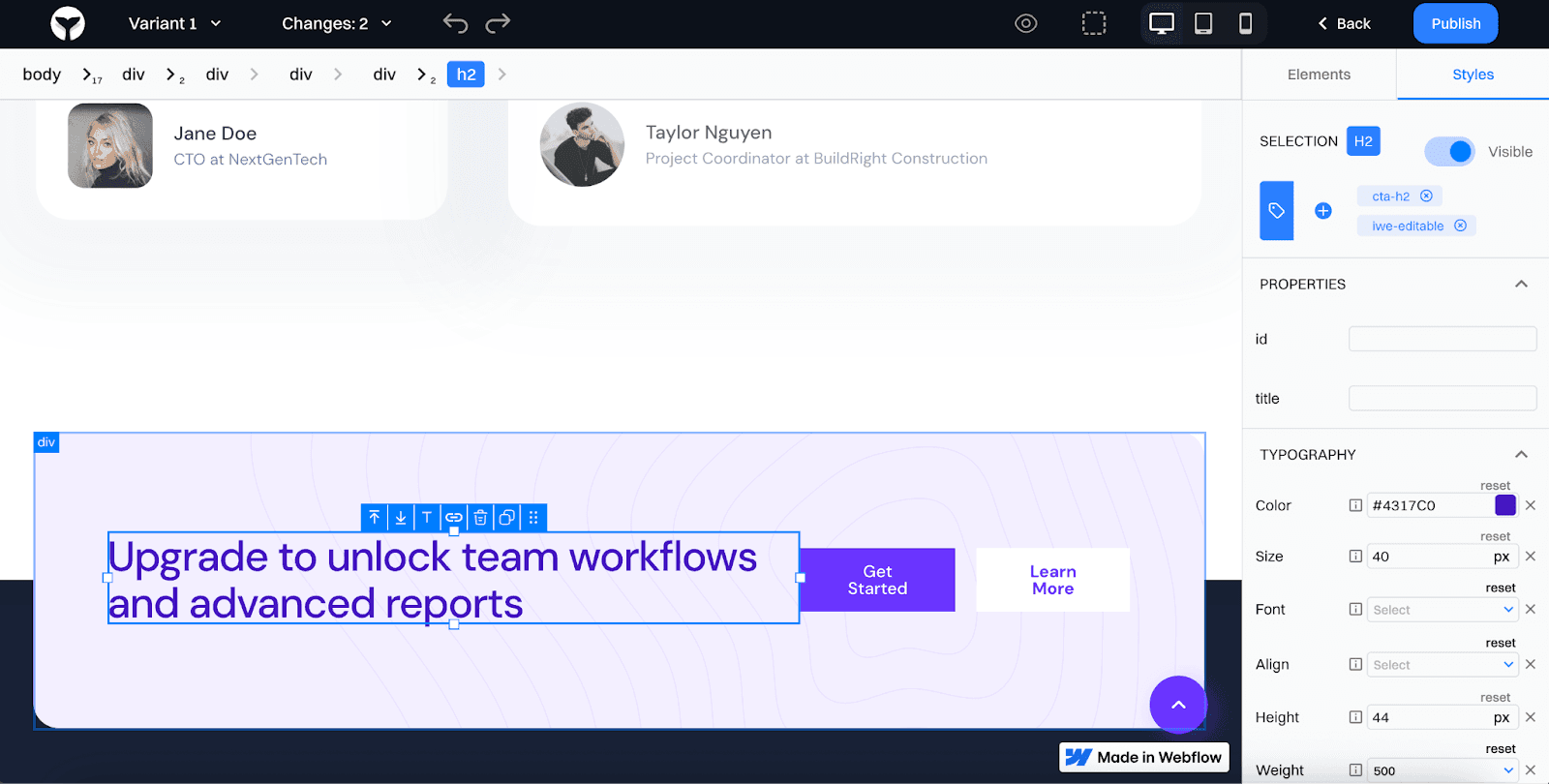
→ Location: Homepage banner
Banner (In-App): Sidebar module or dashboard panel: "Ready for more? Unlock Premium Reports"
Location: In-app sidebar
Example 2: Upgrade Curious
Target Segment: "Upgrade curious"
CTA (Web): "Still deciding? Try Premium free for 7 days"
Location: Pricing page sticky footer
Banner or Popup (In-App): Display after using a limited feature: "This feature is part of Premium - want early access?"
Location: Feature-gated modal
Example 3: Low Usage Paid Users
Target Segment: "Low usage paid users"
CTA (Web): "Not getting full value? Explore what you've missed"
Location: Homepage banner or Help center sidebar
Banner (In-App): Tooltip: "Still haven't tried automations? Here's a 2-minute setup."
Location: Triggered on dashboard inactivity or feature hover
Good to know:
You can also personalize- In-App Nav Bar Buttons: e.g. "Explore More Features" for upgrade-curious users and In-Product Tours: Restart onboarding or add contextual nudges for low-usage users
Step 4: Trigger real-time expansion journeys
Go to Journeys and trigger automated nudges for each segment.
Journey 1: Encourage Upgrade
Trigger: Segment = "Basic plan power users"
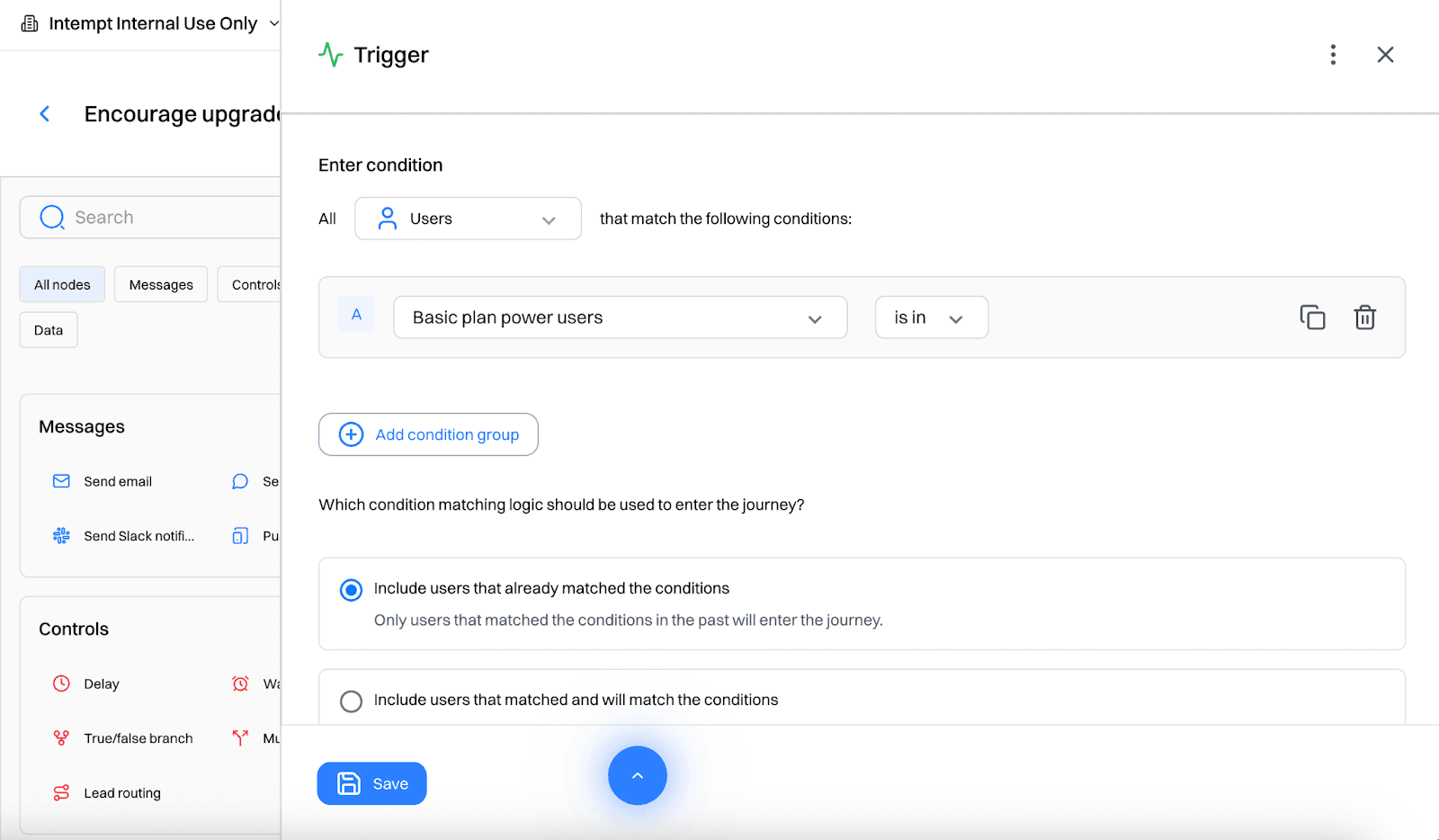
Day 0: Email with upgrade benefits
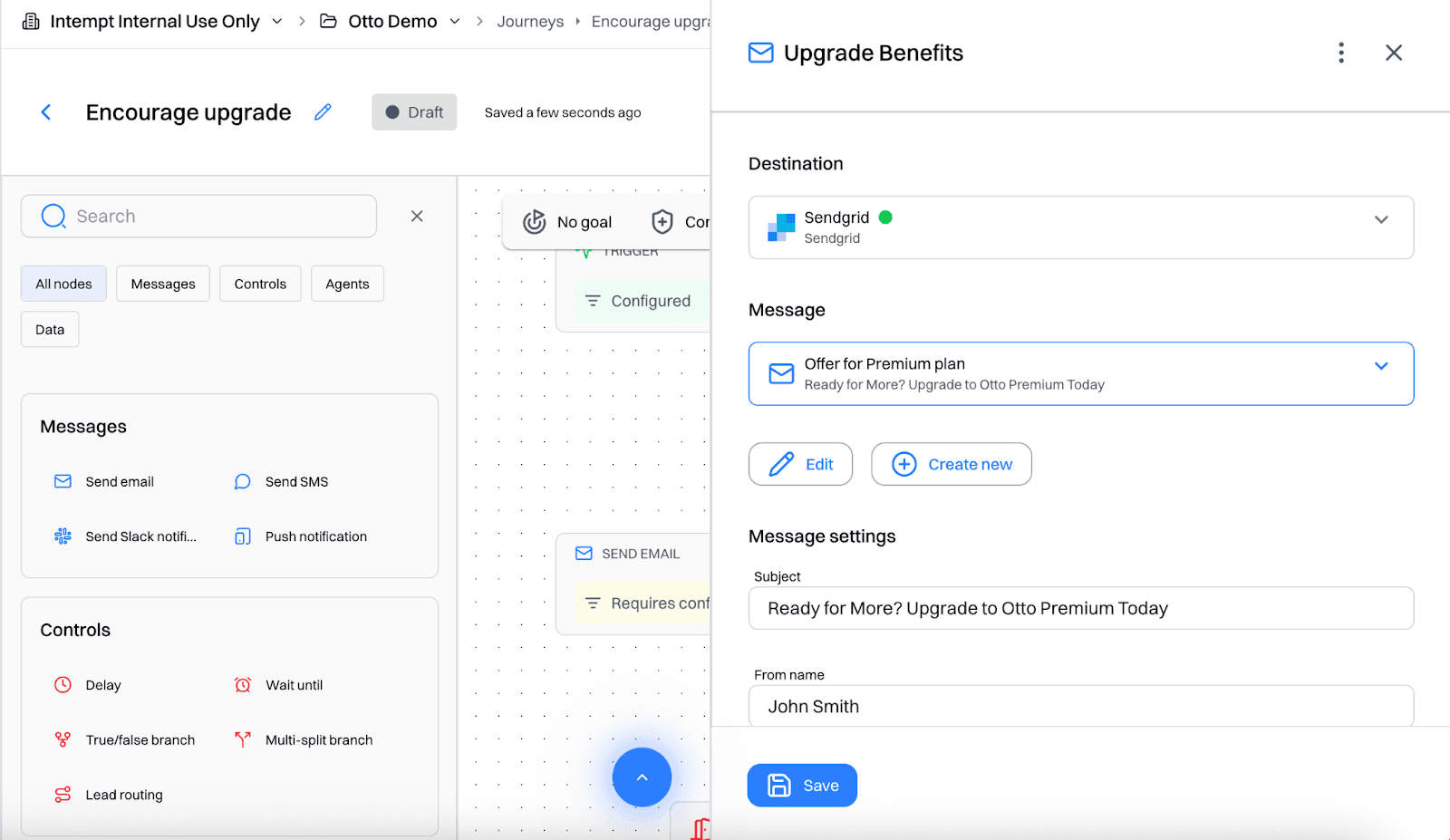
Day 2: Reminder email highlighting premium features
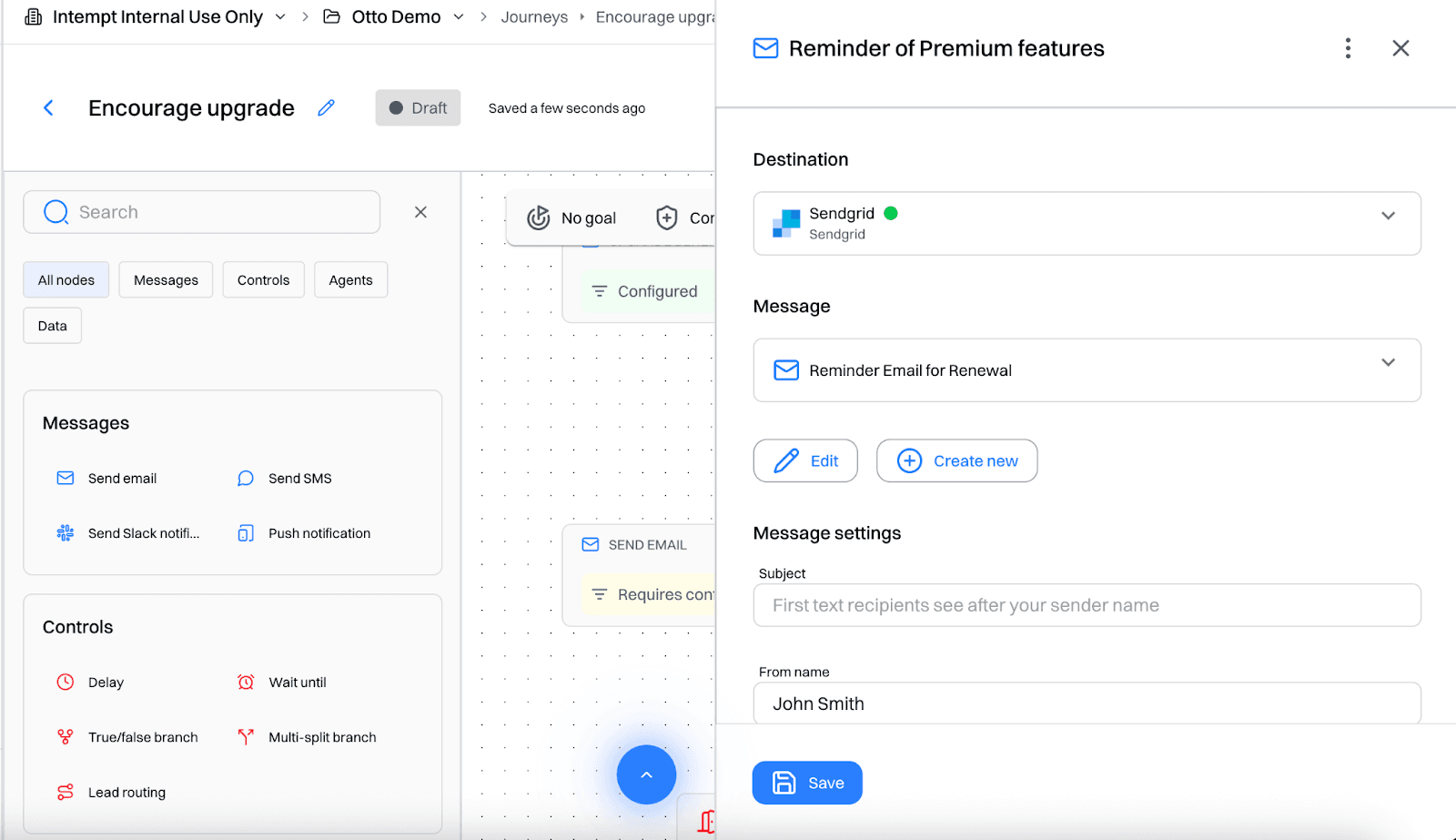
Day 5: Limited-time discount CTA
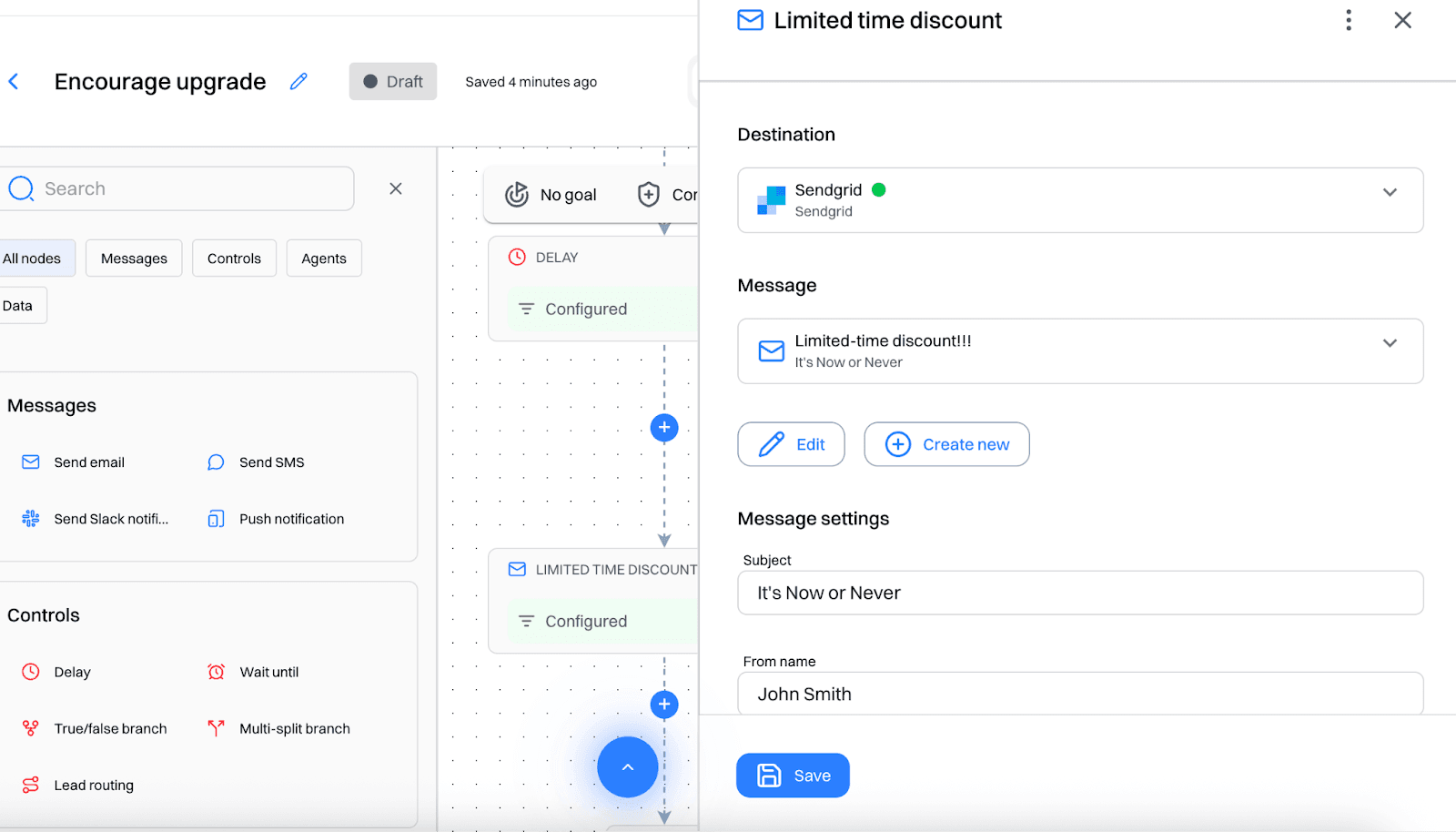
Journey 2: Reactivate Low Usage Paid Users
Trigger: Segment = "Low Usage Paid Users"
Day 0: Friendly check-in email: "Need help getting more out of Otto?"
Day 3: Video walkthrough of underused features
Day 7: "Schedule a success session" CTA
Step 5: Track and optimize performance
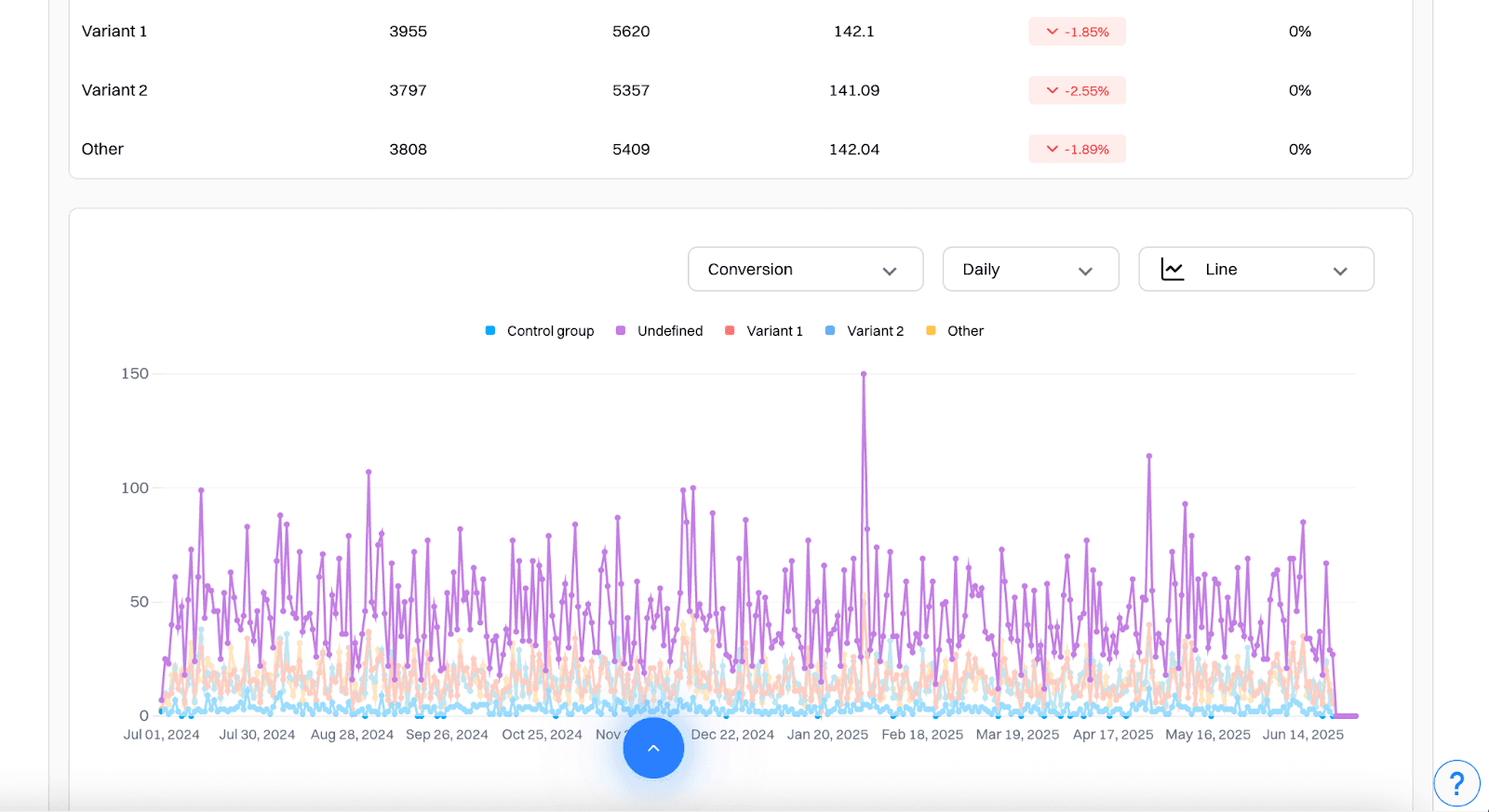
Use Experience Analytics to monitor:
- Conversion rate on CTA clicks
- Lift vs control version
- Top-performing copy per segment
Good to know:
Add all the campaign analytics inside a dashboard for a unified view
In Journey Analytics, monitor:
- Entry volume
- Message open/click rates
- Upgrade or reactivation conversions
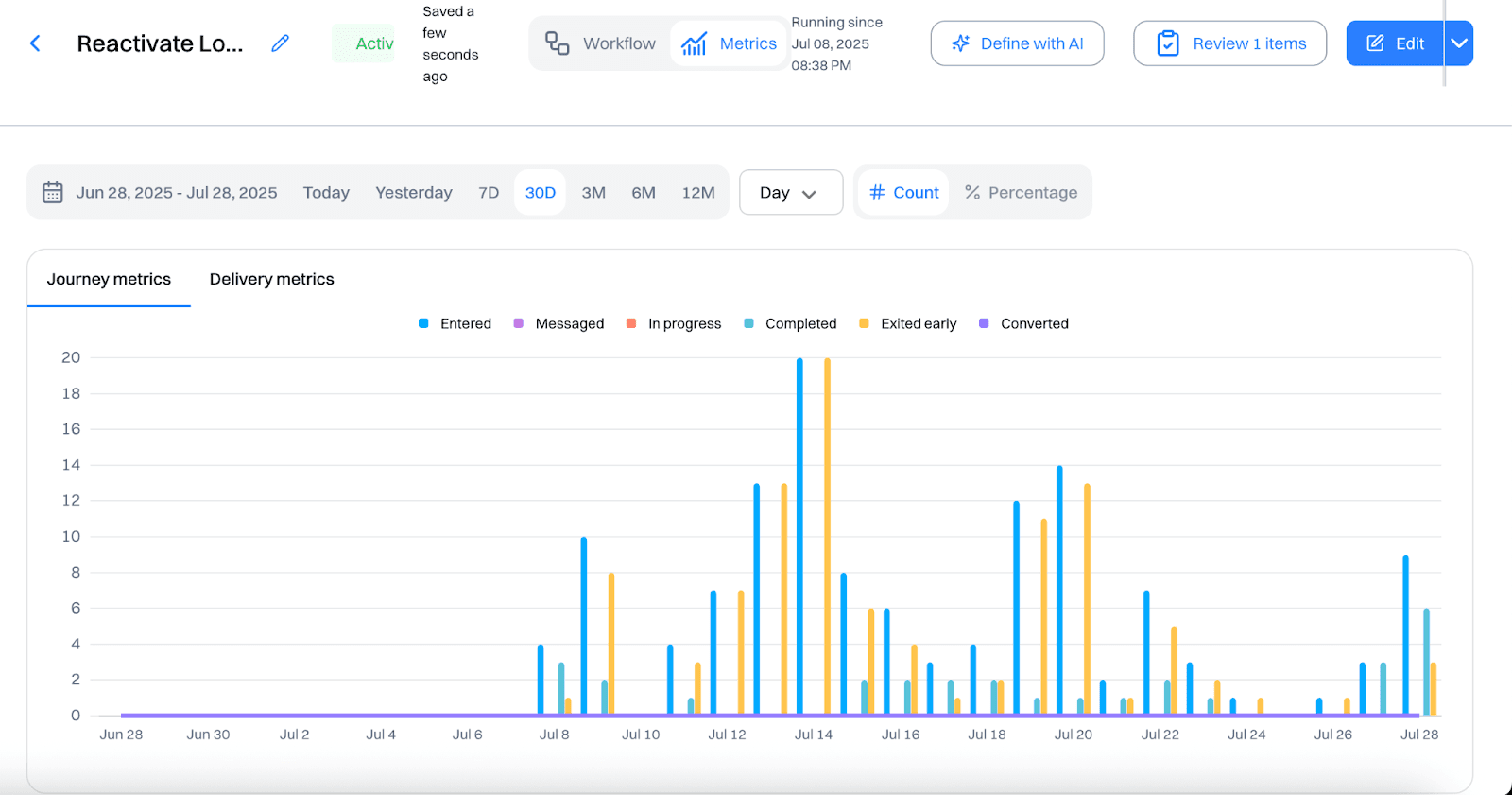
Iterate on copy, timing, and touchpoint logic based on segment-specific results.
Frequently asked questions. Answered.
Combine plan status with engagement signals. For example: users subscribed to the basic plan, logged in at least 10 times in the last month, and used a core feature (like creating tasks) at least 5 times in the last month. These are users getting real value from your product who are likely candidates for expansion.
Create a "Low Usage Paid Users" segment. For example: subscribed to the premium plan, hasn't logged in for 10+ days, and hasn't used core features in the last 10 days. These users are paying but not engaged, which puts them at churn risk. They need reactivation before they cancel.
Yes. Create Experiences targeting each segment. For power users on basic plans, show a homepage banner like "Upgrade to unlock team workflows and advanced reports." For users who've viewed the pricing page multiple times but haven't upgraded, show a sticky footer with "Still deciding? Try Premium free for 7 days." Match the CTA to where that user is in their decision process.
You can target sidebar modules, dashboard panels, nav bar buttons, tooltips, and feature-gated modals. For power users, add a sidebar module saying "Ready for more? Unlock Premium Reports." When someone hits a feature limit, show a modal: "This feature is part of Premium - want early access?" You can also restart onboarding flows or add contextual nudges for specific features.
Start with an email highlighting specific upgrade benefits relevant to their usage patterns. Follow up a couple days later with a reminder featuring premium features they'd actually use. If they still haven't converted after a few more days, offer a limited-time discount or extended trial. Each step escalates the incentive while staying relevant to their behavior.
Yes, but be thoughtful about overlap. A user could technically qualify for multiple segments. Use segment priority or exclusion rules to avoid conflicting messages. For example, if someone is both a power user and upgrade-curious, decide which journey takes precedence based on which behavior is most recent or most indicative of intent.
Pretty granular. You can trigger experiences based on feature hover, time on page, scroll depth, button clicks, or specific sequences of actions. For low-usage users, you might trigger a tooltip when they hover over a feature they've never used. For upgrade-curious users, you might show a modal after they've viewed premium features three times in one session.
Set up your Experience with a control group that sees your default CTA. Intempt tracks conversion rate for both the personalized version and the control. The lift metric shows you the percentage improvement from personalization. Compare across segments to see where personalized CTAs make the biggest difference versus where generic messaging works fine.

About the author
Sid Chaudhary
Founder & CEO
Sid is the Founder and CEO of Intempt. He writes about AI-powered marketing, customer data, and growth strategy for B2B and e-commerce teams.
LinkedIn